Skunks & Fellows: Automating LinkedIn AI Posts in 5 Minutes with n8n | No-Code AI Workflow Tutorial
A Skunks & Fellows tutorial builds a free n8n workflow, in about five minutes, that pulls AI news from an RSS feed, summarizes it with GPT-4o-mini, and posts it straight to LinkedIn.
The LinkedIn post shown at the start of this video wasn't written by hand. It was generated and published entirely through an automated workflow, built in under five minutes, using nothing but a free trial and a handful of drag-and-drop steps. This is a Skunks & Fellows tutorial, part of a series where AI Skunkworks members and Humanitarians AI Fellows share practical builds, and it walks through the whole thing live, RSS feed to published post.
Where the idea came from
The starting point was a news source already being checked daily for AI updates, alongside some example workflows on GitHub that sparked a simple question: why not try building a LinkedIn automation with this? The plan that emerged was straightforward: read content from a feed, use an LLM to summarize it, and format the result as a LinkedIn post, using n8n, a workflow automation tool, to connect all the pieces together.
Setting up n8n Cloud
The build uses n8n Cloud's free 14-day trial, which comes bundled with a set of free OpenAI credits, roughly 100 credits according to the walkthrough, enough to run this kind of workflow without any upfront cost. No prior automation experience was needed to get a working setup running quickly.
The RSS trigger
The workflow starts with an RSS feed trigger pointed at VentureBeat's AI category feed. The trigger is set to check today's feed so it always pulls the latest posts, and it's configured to run automatically on a recurring schedule, in this case every 48 hours, so the whole pipeline fires and produces a new post without any manual restart.
Filtering for relevance
Right after the trigger, an "if" node checks whether the incoming article's category actually contains "AI," filtering out anything that doesn't fall under the AI category before it moves further down the pipeline. Only items that pass this check continue on to the summarization step; everything else is dropped. The filter is kept intentionally simple in this build, though the workflow could support additional conditions for more precise filtering.
Summarizing with GPT-4o-mini
Filtered articles are passed to an OpenAI chat completion node using GPT-4o-mini, chosen specifically because it's budget-friendly and fits within the free credits n8n provides during the trial. The prompt used asks for a JSON output containing both a LinkedIn post and a URL, with instructions to keep the post around 100 words, include line breaks for readability, keep it engaging, and end with a question to encourage interaction. Rather than feeding the model raw article content, which often carries embedded HTML tags and images, the workflow pulls a cleaner "content snippet" field instead, since it summarizes more reliably.
Publishing straight to LinkedIn
The final step connects to a LinkedIn account through n8n's built-in "create a post" action. Setting this up requires creating a new credential and authenticating by entering your LinkedIn login directly within n8n's connection flow. The post is published as an individual person rather than an organization page in this walkthrough. The generated LinkedIn post text gets mapped into the post content field, the media category is set to "article" so the summarized link gets attached and readers can click through to the original piece, and the original article URL is added as the link target.
Seeing it work
Running a test of the completed workflow produces an actual, live LinkedIn post, complete with the attached article link, generated entirely from the pipeline just built. The video is explicit that using a larger model than GPT-4o-mini would likely produce noticeably better writing quality, but the point of this build was speed and cost, not polish, and the whole thing came together as a first attempt with no prior familiarity with n8n.
Tuning it further
Before wrapping up, the workflow is switched to active, meaning it will keep running on its 48-hour schedule and continue posting automatically going forward. The video also points toward how to make the output more personal: adjusting the prompt sent to GPT-4o-mini to reflect a particular tone, sense of humor, or voice will change how each generated post reads, without touching any other part of the pipeline.
Key takeaways
- The full workflow, from RSS trigger to published LinkedIn post, was built using n8n Cloud's free trial and GPT-4o-mini within its free OpenAI credit allowance.
- An RSS feed trigger pulls from a news source (VentureBeat's AI feed in this build) on a recurring 48-hour schedule.
- An "if" node filters incoming articles by category before anything reaches the summarization step, keeping only AI-related content.
- The GPT-4o-mini prompt requests a structured JSON output (post text plus URL), targets roughly 100 words, and asks for line breaks and a closing question to drive engagement.
- The workflow publishes directly to LinkedIn via n8n's built-in post action, attaching the original article link as a clickable reference.
- Adjusting the prompt's tone and using a stronger model than GPT-4o-mini are both easy ways to improve output quality beyond this first-pass build.
Who this is for
This tutorial is aimed at anyone curious about no-code AI automation who wants a concrete, working example rather than an abstract overview. It's part of the Skunks & Fellows series, featuring tutorials from AI Skunkworks members at Northeastern University and Humanitarians AI Fellows focused on practical, accessible AI applications.
Chapters
Full transcript(auto-generated, with timestamps)
The automated post drops!
[0:04]Hi. So, the post, the LinkedIn post which you see in front of me was completely automated using a workflow and I'm going to show you exactly how I did it and it didn't take me more than 5 minutes to do this. So, I used N8N which is a secure workflow automation and as you can see in the example provided you can do a lot of fancy things. So I was just going through this GitHub and uh this spot why why don't I just try out an LinkedIn automation and
Why LinkedIn automation rocks
[0:34]Uh it was a pretty simple one but it's it's quite good. So what I did was so there's this page which I follow uh every day. I just go through it uh to see about the latest updates. So I thought I would use uh their API. So, so this is the uh API link which I was using. So, the idea was to read content from this and using any LLM uh summarize it and make it as a LinkedIn post. So, that that was the basic idea. So, I started
n8n Cloud workflow basics
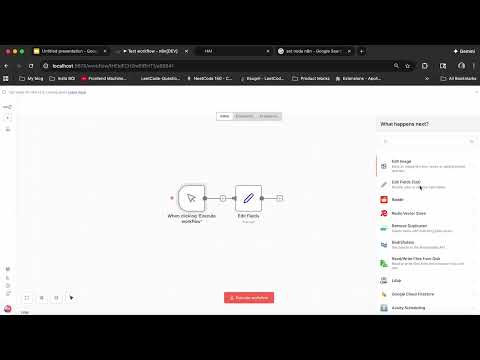
[1:13]With uh logging into NAT and I set it up and workflow. This is the workflow. It's quite simple. I mean you could do a lot of other things as well in this but uh I just kept it quite simple and uh I didn't have any prior knowledge. It didn't take a long time as well. So this RSS feed trigger is going to uh take details from this uh page. So I set it like today's one so that it always has the latest and some recent post. And I just use an if to check if the if the news which I'm taking is an AI related news or if it falls under an AI category and then I just use an open AI model to just summarize it. So I didn't pay for any of it here. So I'm just using the NA n free trial of 14 days. And they did provide an openi free credits as well uh for uh I think they provided like 100 credits. So I'm just going to do the same setup and show you how you can do it as well. So I'll just start with creating a new setup. And the
RSS feed trigger setup
[2:22]First thing like I said let's add our RSS feed trigger. We can use our RSS read also. When we use our uh trigger what we can do is we can have like an automatic trigger whenever a new news is a news is updated we could always trigger it and in our RSS feed trigger. So this is the example feed URL which they have given. So you can see so but what I am using is this one. So right so this is getting the latest uh news and see you can see some categories over here. So this is what I use to filter out if it's a part of an AI category. So I'm just going to keep it uh a custom or every 48 hours right so that every 48 hours this is going to run and going to do a post for me.
Filtering for AI news
[3:26]Okay. So first RSS trigger is done and the next part is our if. So what I'm doing here is uh I'm just going to do some drag drop over here. Just take the categories and going to check if it contains AI. So I can have more conditions as well. So I'm just keeping it simple now. uh when I do a test setup I can see it's going to test this condition and give me like a true branch and a false branch. So only if it's true I'm going to go ahead with my open AI models and uh carry on. So
GPT-4o-mini summary magic
[4:07]Next part is adding an open AI model. So what I'm going to do is just a chart completion. So I'm using the OpenAI free credits which NAN provides and it's just a text. So part of their free credits I think we are limited by using only few models. So I I'll just go with GBT 40 mini which is very budget friendly. And about the prompt, I have a prompt which I used uh in my previous post. I'll show you how what it says as well. Like a I want an JSON output which has LinkedIn post and URL. I'll show you why I'm having getting this URL also. And uh I want like a 100word LinkedIn post. It should have line breaks between them so that uh you know
It'll have like a better formatting when we do a LinkedIn post and we have it uh I'm just mentioning it to keep this engaging and end with a question. Okay. So you can see all these things over here. It's quite simple. You can just uh drag drop this content snippet over here. And the reason why I'm not drag dropping the content is because sometimes the content has like uh you know uh all these uh attached images this HTML tags uh like this. See, so it's always better when we have a content snippet. Uh, right. So I'll just give output content as a JSON. And let's test the setup. Right? So this is the output which we're getting a LinkedIn post and a URL. And the next step is
Posting to LinkedIn
[6:12]Linking it with our LinkedIn account. So they do have like a create a post action. So I've already uh linked in my account. Uh if you have to do yours, you can just click on create a new uh credential. Uh I don't think I need organization support. So next thing you can you should just click on connect your account, enter your password, sign in and then it's going to show you. So this is the previous one which I have linked and we're going to uh create a post post as a person which shows up my uh name over here and this here we should add in the post content. Let me
Just click on JSON. So for the post content I'll just drag drop LinkedIn post. For the media category, I'm going to keep it article because we're going to attach our link in it as well so that the user can redirect to the uh article and complete reading the complete article on the topic. Right, I'm just going to add a feed for original URL. That's where our URL goes. Awesome. So yeah, so now we have a complete workflow and what I'm going to do now is do a test workflow. So it's going to just run and we are going to have a LinkedIn post. Just going to refresh my page. Right. So,
Live post reveal
[8:10]Here's a LinkedIn post and we do have a link and it's referencing your latest news. You can always like uh change your prompt and make it little better. Uh you know if you always post u little funny or you might have a different way how you interact. You can just uh write those in your prompt and have uh better LinkedIn post tailored to you. And also I'm just using a GPT4 mini model. you're going to have a far better outputs and results when you use GBT4 model. But it's it was just a small test. It didn't take more than five minutes for me to just put this all together. And this is my first time using it. Once if you're spending more time in it, you can like you know uh go around all the other tools which they has have to offer and you can build up like a awesome uh output. Right? So if I just activate the
Tips to tweak it
[9:23]Uh workflow and keep it. So every 48 hours it's going to get triggered and it's going to keep executing and you're you're going to just be posting LinkedIn post automatically. Yeah. So that is all for now. Thank you.
More from INFO7375 Branding & AI
 15:15
15:15Skunks & Fellows: Automate Everything with n8n! | No-Code Workflow Magic
 2:58
2:58Madison: Build AI Agents for Marketing & Branding | OPT-Eligible Open Source Project
 5:01
5:011 Getting Started n8n with HAILogo
 6:49
6:495 - Building a Web UI for Your Madison Agent with Streamlit
 10:00
10:00Building AI News Monitoring Agent with n8n & FastAPI | Mycroft | Nerd Stuff with Humanitarians AI
 4:00
4:00